This article is an AI-assisted translation of the original Japanese version. (この記事は日本語でも読めます)
🎄 Participating in the VWS Advent Calendar! 🎄
This article is the 23 December entry for the Vektor Web Solutions Advent Calendar 2025. It follows the article published on 22 December by Masahiko Kawai san, “Making WordPress Easier to Manage with the Fixed Page Content Block” In this article, the focus is on building a multilingual website using free themes and free plugins. However, some paid products are also introduced as part of the discussion (PR).
Hello, this is Chiaki. I’m in charge of marketing and public relations at Vektor, Inc. Japan.
It’s hard to believe that the end of 2025 is already approaching!
During the first half of the year, I spent a lot of time on the move — staying mainly in Japan, briefly returning to our Hong Kong base, speaking in Manila about building multilingual websites, travelling back and forth between Malaysia and Thailand, and even spending time in the UK for the first time. It was a very mobile first half of the year.
Since the summer, however, things have shifted, and I’ve been focusing more steadily on tackling the tasks right in front of me.
Against that backdrop, I decided to refresh this personal website.
For the theme, I chose “X-T9”, a WordPress theme that supports Full Site Editing (FSE)1, and for multilingual support, I’m using the plugin “Bogo”. The site is now available in three languages: Japanese as the base language, plus English and Traditional Chinese.
Both X-T9 and Bogo are free and listed in the official WordPress directory, meaning they can be easily found, downloaded, and installed directly from the WordPress admin screen.
In this article, I’d like to share some brief reflections on what I noticed while building a multilingual site using a Full Site Editing theme, as well as a few observations that are specific to running a personal website.
…That was the plan, at least — but it turned out to be a rather long article.
Background to the Refresh
Previously, I had been using “Katawara”, a Lightning Pro–based theme that offered a good balance of flexibility and usability, for around six years. Over time, I started thinking that I’d like to move to a Full Site Editing (FSE)–compatible theme — and perhaps make the site multilingual at the same time.
That said, despite these ideas, I kept putting it off and never quite found the motivation to get started.
Then recently, an Advent Calendar article by Vektor’s development lead, Ishikawa, titled “Did You Know? WordPress Block Themes Are Actually a Perfect Match for Multilingual Sites” was published, and I thought, “This is the moment!”
In that article, the Full Site Editing–compatible theme “X-T9”, the multilingual plugin “Bogo”, and a design adjustment plugin that makes Bogo easier to use with X-T9 are all introduced — and made available for anyone to use for free. Much appreciated.
知ってました?WordPressのブロックテーマって実は多言語サイトにめちゃめちゃ相性がいいんです。 | 株式会社ベクトル
VWSアドベントカレンダー参加中!この記事は「Vektor Web Solutions Advent Calendar 2025」の12月17日の記事になります。前回の松田さんの「VK FullSite Installer「製造業デモサイト」を作ってわかった!サイトの信頼は「構成・導線」で作りやすくなる」の記事に引き続き書きたいと思います。業務でサイト制作をしていると多言語サイトの案件にぶつかった経験がある方も多いのではないでしょうか?表題の通りなのですが、Wo

In addition, Vektor staff member Sasaki had already refreshed their blog using X-T9, and I found the following article very helpful as a reference 😊
From there, I spent about four days rethinking the purpose of the site and adding to the content (this part took the most time). After that, I introduced “X-T9” × “Bogo” — with the actual build work taking roughly half a day — and ended up with a solid base for a Japanese, English, and Traditional Chinese website that largely matched what I had in mind.
“Bogo”: A Design That Aligns Closely with WordPress’s Native Architecture
The strength of the multilingual plugin Bogo can be summed up in a single phrase: a design that aligns closely with WordPress itself.
Bogo is developed by Takayuki Miyoshi, who is also well known as the creator of Contact Form 7. The plugin is built around a clear philosophy — to make use of WordPress’s native mechanisms as naturally as possible, rather than introducing complex or proprietary systems.
For anyone who wants to implement multilingual support while fully respecting how WordPress is designed to work, Bogo is an extremely easy-to-understand and approachable plugin.
In previous talks, I researched and compared several major multilingual plugins used worldwide — including Bogo, WPML, and Polylang. All of them are excellent plugins and are widely supported by developers around the globe.
The materials compiled at the time are available at the link below (in Japanese).
How Far Can You Go? A Complete Overview of Multilingual Plugins”
(Approx. 27 minutes)
While the most suitable option varies depending on use case and site scale, for this particular personal website, Bogo stood out as the best fit for my goal: to manage a multilingual site simply, while gaining a clear understanding of how multilingual support itself works within WordPress.
That focus on simplicity and transparency is what ultimately led me to choose Bogo for this project.
💡Practical Observations from the Build
What Works Well with Bogo 👍
- From an original page, selecting a target language automatically creates a new editor page with the original content duplicated. This makes it very easy to jump straight into replacing the text with translations, so the initial setup is quick and painless.
- The linkage between the original page and its translated versions is created at the same time. In the editor’s right-hand sidebar, links to the translated pages are displayed, making it easy to move back and forth if the original content is updated.
- The content and structure of the original and translated pages do not need to match exactly. Because this is not a machine-translation-style workflow that overlays translations onto the original, wording and structure can be adjusted flexibly to suit each language and culture.
- In the admin screen, posts and pages can be filtered by language. Even as the number of pages grows, it remains easy to see which content belongs to which language.
- Actions such as managing “translation packs” or editing text strings are intuitive and involve little guesswork. The settings are not overly complex, and the controls feel focused on what is actually needed.
- The plugin does not add custom database tables, avoiding unnecessary data overhead. By making full use of WordPress’s native structure, it feels reassuringly robust for long-term use.
- Multilingual-friendly HTML output, including hreflang, is handled automatically ⭐️. Having important SEO considerations covered without extra effort is a significant advantage.
⭐️ On Automatic hreflang Output
When search engines such as Google try to understand the relationship between multilingual pages, many people assume that they rely solely on attributes like <html lang=”ja”>.
In reality, the lang attribute is primarily used by browsers to determine display language.
To clearly signal to search engines which page targets which language or region, a specific format using hreflang is required.2
For example, on my blog, the same article is published in Japanese, English, and Traditional Chinese. In the HTML source, the following tags are automatically generated:
<link rel="alternate" href="https://chiakikouno.com/zh/wordcamp-asia-2025-speaker/" hreflang="zh-HK" />
<link rel="alternate" href="https://chiakikouno.com/en/wordcamp-asia-2025-speaker/" hreflang="en-GB" />
<link rel="alternate" href="https://chiakikouno.com/wordcamp-asia-2025-speaker/" hreflang="ja" />
From top to bottom, these indicate the correspondence between the Hong Kong Chinese, British English, and Japanese versions of the article.
Because Bogo automatically outputs this kind of hreflang markup, it naturally fulfils an important SEO requirement for multilingual sites, without requiring additional manual configuration.
It’s impressive that all of this functionality is available for free and can be used with confidence.
What’s Convenient About X-T9 (FSE) 👍
- All templates can be edited directly from the admin screen. There’s no need to touch theme files manually, and everything can be done within the WordPress interface, which significantly reduces setup overhead.
- Pre-built templates are provided, allowing you to start from a solid base. You don’t have to begin with a blank slate. Instead, you can choose a template while thinking through your content, which makes X-T9 an approachable entry point into Full Site Editing.
- Multiple colour variations are available out of the box. You can start with a colour scheme close to your intended look and gradually fine-tune it to suit your preferences.
- Templates can be reset to their default state if something goes wrong. Even if a customisation breaks the layout, you can easily revert it. Being able to experiment freely and recover quickly is especially reassuring when first working with FSE.
- Styles can be registered and reused on a per-block basis. For example, once a blog card style is defined, it can be reused confidently during content creation without hesitation. (This is something I’d like to continue refining over time.)
- Thanks to Vektor’s language switcher design adjustment plugin, a Bogo-compatible language switcher could be added almost exactly as-is 🙌 Even with a setup that combines Full Site Editing and multilingual support, this meant there was no need to struggle with design details.
Fine-tuning the Header Navigation in X-T9 ⚙️
For the multilingual navigation menu, I followed the approach introduced in the article by Vektor’s Ishikawa:
- Create navigation menus for each language, manually entering the page names and URLs for the translated versions
- Use the VK Dynamic If block to switch navigation menus depending on the active language
Overall, this approach works without any major issues. However, there was one detail that caught my attention.
When switching from the default language (Japanese) to another language, the underline indicating the “current page” in the header menu disappeared.
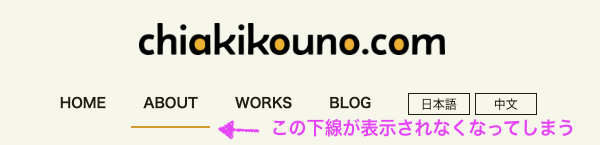
The reason seems to be that, in step (1), the navigation menus for other languages are created using custom links (manually entered URLs). Because of this, WordPress is unable to determine whether a link points to the current page, and classes such as.current or .current-menu-item are no longer applied.
As a result, the underline style that indicates the currently viewed page no longer works.
In my case, instead of relying on the current class, I adjusted the display logic by adding the following CSS to Additional CSS.
Where to add it:
Appearance > Editor > Styles > ︙ (three-dot menu) > Additional CSS
/* --------------------------------------------------
 * Fallback when navigation items do not receive
 * a "current" class
 * Use the automatically added body class
 * .post-name-{slug} to underline the active menu item
 * -------------------------------------------------- */

/* When viewing the About page: underline the /about/ link */
.post-name-about .wp-block-navigation-item a[href*="/about/"]::after {
    width: 100% !important;
}

/* When viewing the Works page: underline the /works/ link */
.post-name-works .wp-block-navigation-item a[href*="/works/"]::after {
    width: 100% !important;
}
Here, the condition is based on the .post-name-{slug} class that is automatically added to the <body> tag.
Even if the navigation menu itself cannot determine the “current” page, WordPress still knows which page is being displayed, so this class can be used reliably.
With this adjustment, the header menu now correctly shows an underline on the About and Works pages — not only in Japanese, but also when switching to English and Traditional Chinese.
(If there’s a cleaner or more elegant way to handle this, I’d love to hear about it.)
An Example of Language-Specific Display and Translation Adjustments 🎨
Card layout for presenting the Areas of Work
In the card layout used to introduce the “Areas of Work” on the Works page, the content is not translated word for word for each language. Instead, the display is adjusted slightly for each language, taking visual balance and readability into account.
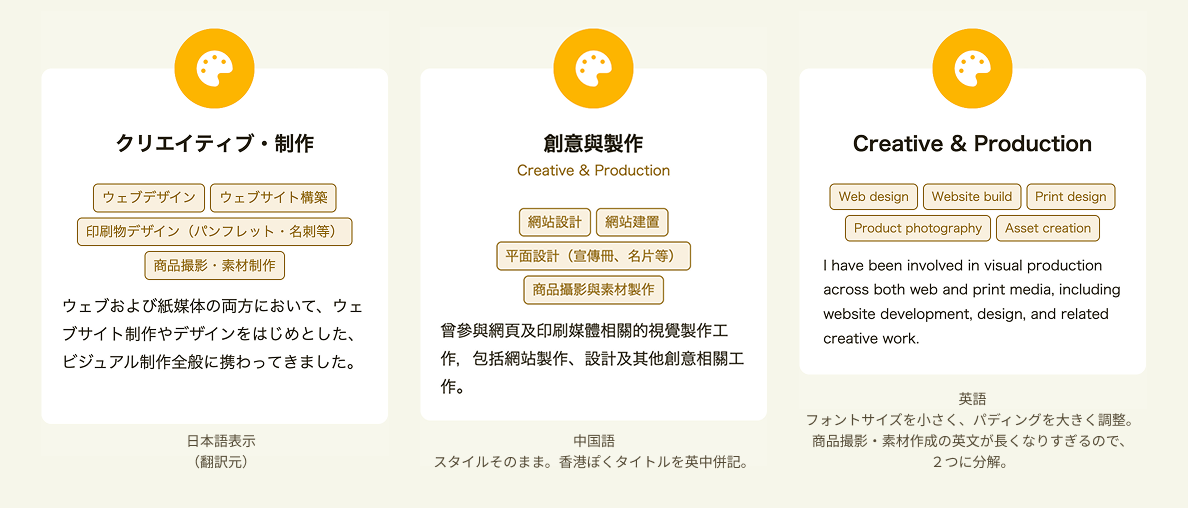
For the Traditional Chinese version, the basic layout and structure follow the Japanese version. However, to suit a Hong Kong audience, English titles are also shown alongside the Chinese text. Rather than sticking to a direct translation, the wording is adjusted with priority given to clearly conveying the nature of the work, balancing the amount of Chinese characters and line breaks to keep the cards easy to read.
For the English version, using exactly the same amount of information as the other languages tends to result in longer text, making the cards feel cramped. To address this, several adjustments were made:
- Slightly reducing the font size (Latin characters remain readable even at a smaller size compared with Japanese text)
- Increasing the padding inside the white cards by one step
- Structuring items more clearly, such as separating “Product photography / Asset creation”
These changes prioritise clarity and visual balance over strict consistency.
As this example shows, even when communicating the same “scope of work”, it helps to consider:
- The amount of text required for each language
- The expectations of the intended audience
- How well the text fits within the layout
With multilingual sites, it’s not enough to simply replace text. It’s important to think about how the content looks and feels when viewed in each language3.
In this case, using Bogo together with block editing made it possible to carry out these kinds of adjustments smoothly.
By contrast, with plugins that assume translations will strictly follow the original structure, flexibility can be limited. In such cases, it’s easy to end up compensating by adding language-specific CSS, rather than adjusting the content itself.
Disclaimer for Translated Pages
The Japanese version of the Privacy Policy does not include a translation disclaimer.
However, for the English and Traditional Chinese versions, an additional note has been added for clarity.
This note simply states that the page is a translation of the original Japanese text, and that the Japanese version takes precedence in the event of any discrepancies.
English version
This page is an English translation of the original Japanese text.
In case of any differences, the Japanese version takes precedence.
Traditional Chinese version
本頁為日文原文之中文翻譯版本。
如有任何內容差異,概以日文版本為準。
Including a short disclaimer like this helps reduce potential misunderstandings caused by differences in interpretation or wording during translation, and also mitigates risk for the content publisher.
Points I’d Like to Test a Bit Further
- For static pages, when previewing the translated version of the Home page from the translation editor, the original (Japanese) page is shown first. It’s then necessary to switch languages to confirm the translated version. Until you get used to this, it helps to stay aware of which language you’re currently viewing.
- When the original content includes Font Awesome icons specified using < >, such as those added via VK Blocks icon blocks, the display can occasionally break temporarily due to sanitisation during duplication. Re-copying and pasting the affected part manually resolves the issue without problems.
- With X-T9 templates, translations are reflected correctly when the templates are used in their default state. However, once edits are made, some labels — such as “Categories” or “Tag Cloud” — may remain in Japanese. This may depend on settings or structure, and requires further investigation.
- When generating a translated page from a larger, more complex page like this one, which contains a wide variety of blocks, edits may sometimes fail to apply. It’s possible that a specific block is causing the issue, but this also needs more testing.
X-T9: A Perfect “First Step” into Block Themes — Plus a Pattern Library That Helps You Finish (PR)
Using X-T9, I was finally able to get started on refreshing my personal website.
After actually working with it, I found Full Site Editing to be more enjoyable than I had expected, and it genuinely feels like something that becomes faster once you’re familiar with it. Compared with the days of manually writing templates, there is a short adjustment period to get used to the UI and way of thinking — but once you get past that, things quickly become much easier.
For those who are just starting to learn WordPress, I’d strongly recommend trying a Full Site Editing theme at least once. It’s a great way to gain a more intuitive understanding of how WordPress actually works under the hood.
And when building a website — where there are always countless decisions to make — one especially reliable ally is the use of patterns that can be copied, pasted, and edited immediately.
This time, by using patterns prepared specifically for X-T9 from the VK Pattern Library, I was able to borrow layout and presentation ideas and move straight into content creation without getting stuck at the design stage.
It’s a bit hard to tell unless you’re viewing the site on a desktop, but the noticeably different look and feel of the home page comes from using the following pattern ⬇️
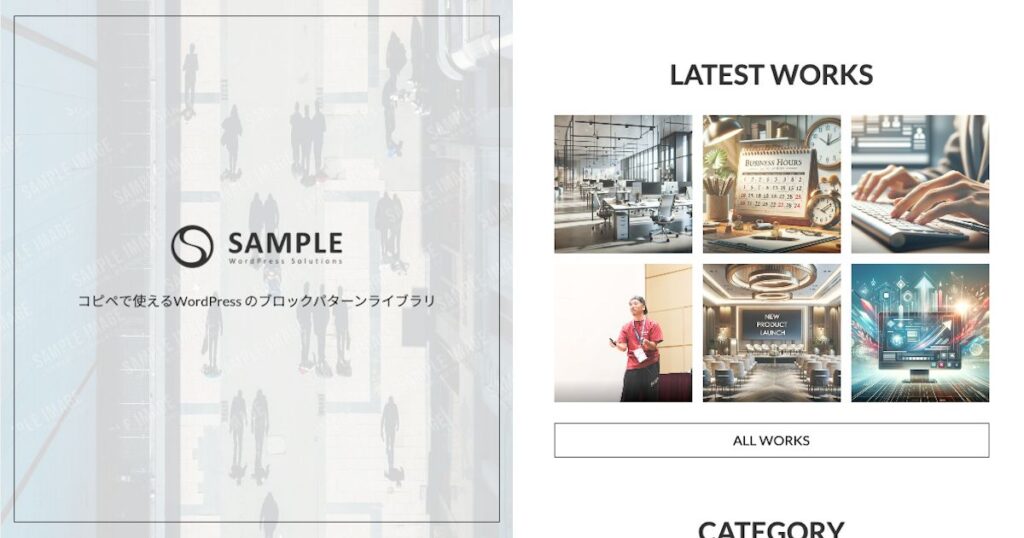

I’ve also used another pattern on the “Areas of Work” page, shown below ⬇️
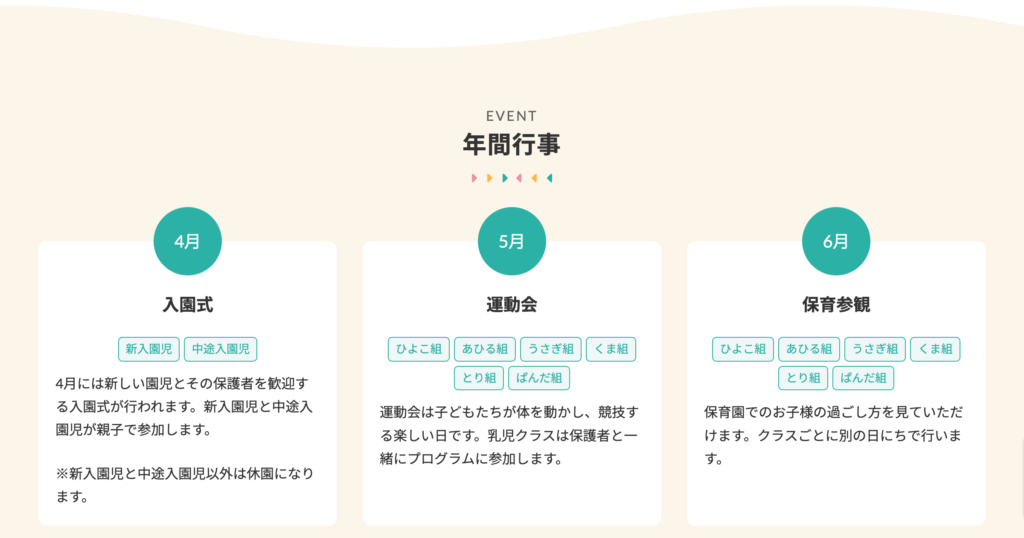
保育園・幼稚園_年間行事とギャラリー | VK パターンライブラリ
コピペで使える WordPress のブロックパターンライブラリ「保育園・幼稚園 _年間行事とギャラリー」のパターンです。
The VK Pattern Library, which includes over 400 ready-to-use patterns compatible with “X-T9”, is available without limits through the Vektor Passport annual subscription licence (service provided in Japanese only).
It’s one of those tools that, once you start using it, makes you think, “I can’t imagine building a site without patterns anymore…”. If this sounds interesting, it’s definitely worth taking a look.
This refresh feels like I’ve only just reached the starting line, but thanks to Full Site Editing, there are so many areas where I find myself thinking, “I’d like to tweak this” or “I want to try improving that next”. I’m looking forward to gradually evolving the site over time.
I’ll be sure to share further updates as things progress 😊
Thank you very much for reading to the end!
Notes & References:
- Full Site Editing (FSE) in WordPress refers to a system that allows the overall structure of a website — including headers, footers, and templates — to be edited using blocks. In the current official documentation, the term “FSE” is used less frequently, and the feature is instead referred to as the Site Editor. Reference: WordPress official documentation — “Site Editor” ↩︎
- Tell Google about localized versions of your page — Google Search Central ↩︎
- In multilingual projects, localisation — including UI, text volume, and cultural context — is as important as translation accuracy.
See my previous presentation, “Website Localisation: Five Key Points” (in Japanese) ↩︎
The next entry in the VWS Advent Calendar 2025, scheduled for 24 December (Christmas Eve), is a wonderfully fun article by Tawashisoft san — definitely one to look forward to!
One day, I’d love to be a fun and inspiring senior — a bit like “Master Shifu” 😊

<図々しくも、アドベントカレンダー参加中!>本記事は「Vektor Web Solution Advent Calendar 2025」の12月24日(水) …